Working from your IDE
Hot deployment from your editor - through the blueprint's directory mapping locally, through the plugin for remote servers.
Saving a Python file in your editor deploys it to a running Zato environment within a couple of seconds - this is hot deployment, and there are two ways to connect your IDE to it, depending on where the server runs.
Zato local install - the blueprint
This is the recommended way to work when the Zato container runs on the same machine as your editor, and there is nothing to install in the editor itself.
- Clone the project blueprint and run its provisioning script,
myproject/impl/scripts/run-container.sh - Open the clone in your editor - VS Code, PyCharm, Cursor, Vim, anything that saves files
- Edit
myproject/impl/src/api/crm.py, save it, and the server log confirms the deployment:
The script mounts your project into the container and tells the server where to find it - these two lines are the whole integration:
echo Zato_Project_Root=$target/$env_name  >> $host_root_dir/config/auto-generated/env.ini
--mount type=bind,source=$zato_project_root,target=$target/$env_name,readonly
The server watches the mounted directory, so a save on the host is a deployment in the container. The directory on your host stays the single source of truth, in git, as the deployment tutorial describes, and the VS Code page covers the editor setup step by step.
Zato remote install - the plugin
When the server runs on another machine - a shared development server, a remote Linux instance while you work on a Mac - there is no directory to mount, so the VS Code plugin pushes the saved file to the server over HTTP instead.
The plugin authenticates with a default account, ide_publisher, which a new environment creates with a randomly assigned password that needs to be changed before the plugin can be used.
Setting the ide_publisher password for the remote install
- To reset the
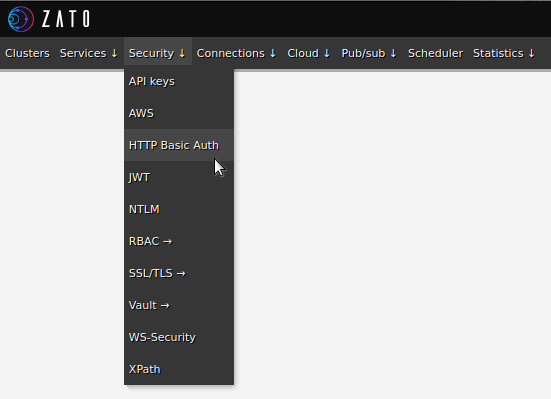
ide_publisher's password, first visit the Security -> HTTP Basic Auth section of Dashboard for your environment:
- Then, use Change password option for the pre-installed
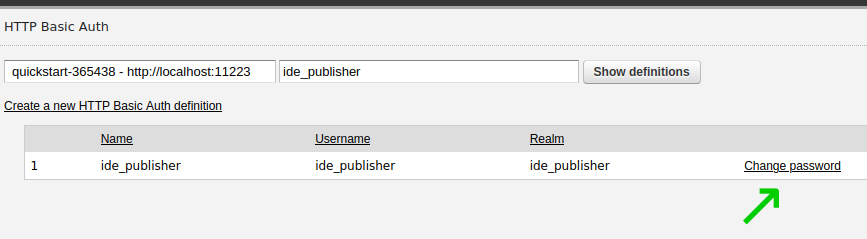
ide_publishercredential to set a new password that the plugin will authenticate with when it deploys services to Zato.