
You use YAML to export or import all of your server definitions, such as REST, GraphQL, SQL connections, scheduler and security definitions, or any other object. The file name for such imports and exports is "enmasse.yaml", so when working with Zato you talk about "importing enmasse" or "exporting enmasse". But remember, "enmasse" is just a YAML config file, straightforward to use.
The enmasse workflow is this:
During development, developers use the Dashboard GUI to define new elements, e.g. it is usually convenient to fill out a form to have a new REST channel available.
When a solution, or an incremental part of it, is ready for wider testing, an enmasse file is exported from the development server to import it to a test server.
Afterwards, the same enmasse export file can be used to configure production servers.
The workflow loop now returns to developers who keep using Dashboard to add new server elements.
All of the export and import steps can be part of CI/CD pipelines that automate the provisioning of Zato environments
Anything that can be declared with the Dashboard GUI can be also exported or imported with enmasse. For instance, in the screenshot below a new REST channel is being defined.
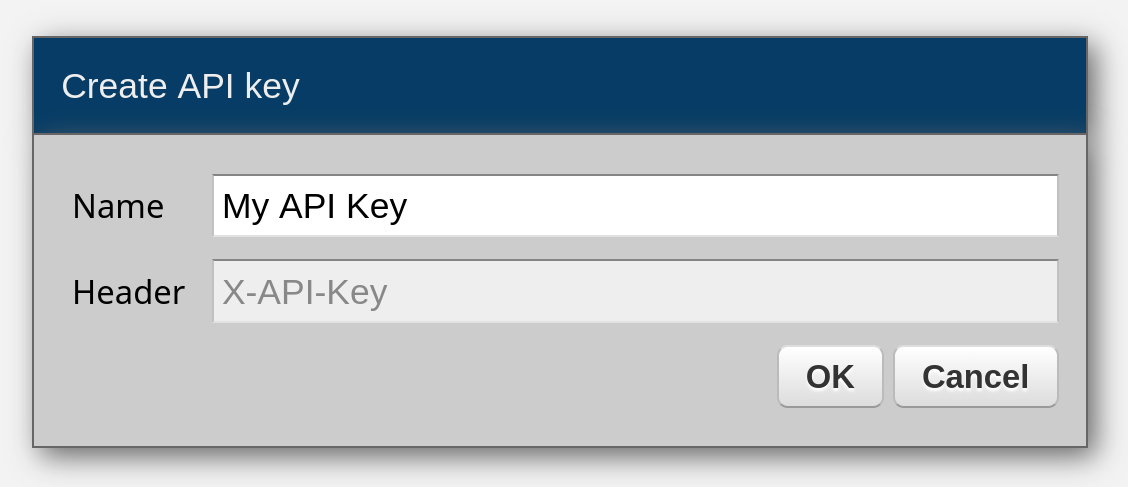
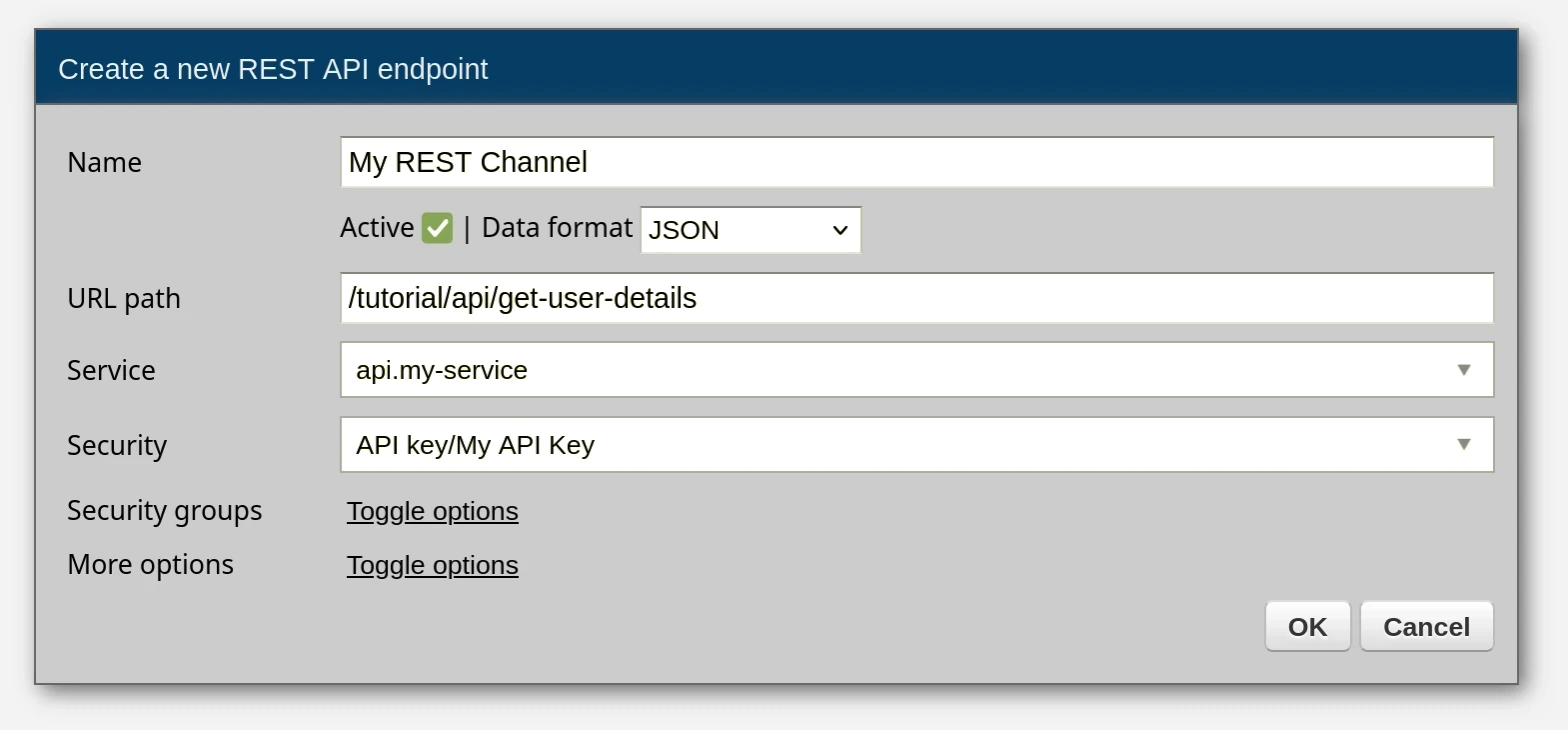
Now, enmasse can be used to export such an API key and REST channel to YAML and you will be able to import it later on.
security:
  - name: My API Key
    is_active: True
    type: apikey

channel_rest:
  - name: My REST Channel
    service: demo.input-logger
    url_path: /api/my/rest/channel
Such export files can be stored in a git repository. Iteratively, developers add new definitions to the file based on the current state of their work. Ultimately, the file will contain each definition, e.g. each REST channel and other connection types, that are needed to configure a particular project or solution.
To prevent any potential leakage of sensitive information, enmasse will not export any passwords from servers to the YAML file. Yet, it is always possible to add passwords to your enmasse files via environment variables, as described later in this chapter, so that you will be still able to recreate fully each definition with passwords where they are needed.
An enmasse file contains configuration only, it does not contain services that the configuration may depend on. Any such services need to be deployed before enmasse imports your configuration file.
You do not need to create an object first in Dashboard before it can be added to an enmasse file. For instance, you may have many similar REST channels or security definitions, differing only in one or two small details, and it will be more convenient if you create one in Dashboard, export it so that you can learn what its format in enmasse looks like, and then create the remaining definitions in the enmasse file directly. In other words, after a while, you will become familiar with enmasse to the point that you will be adding definitions directly to it.
System → Config → Export enmasse and your server configuration will be exported to enmasse.yaml.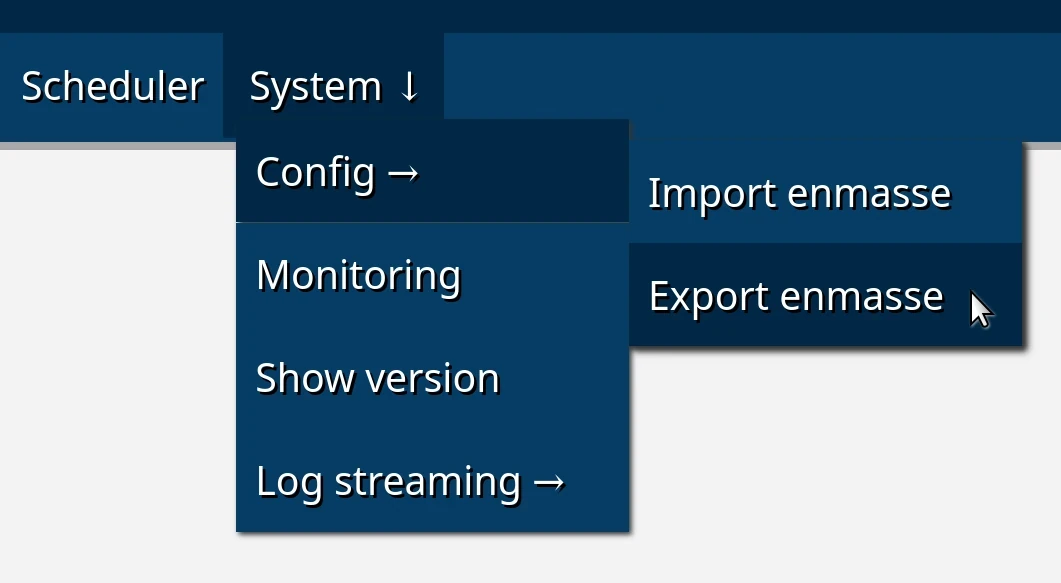
System → Config → Import enmasse and select the file to import.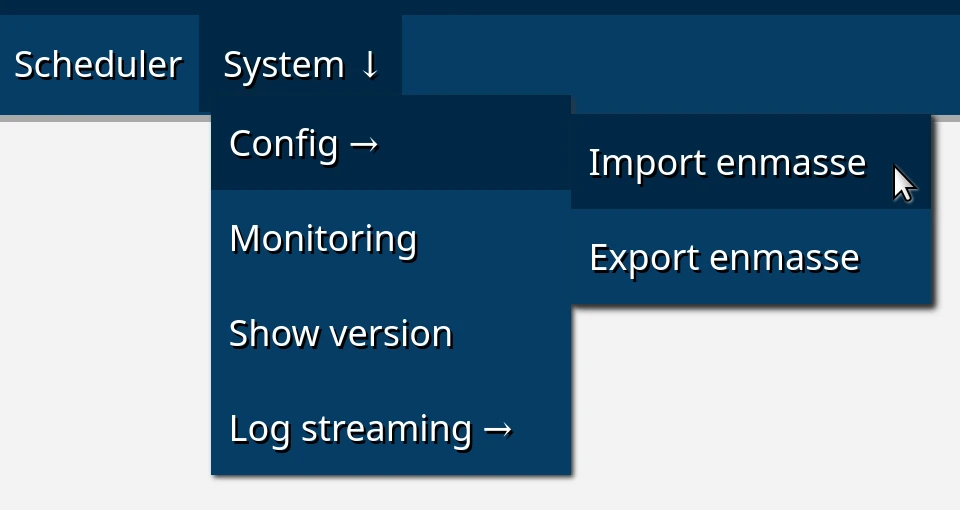
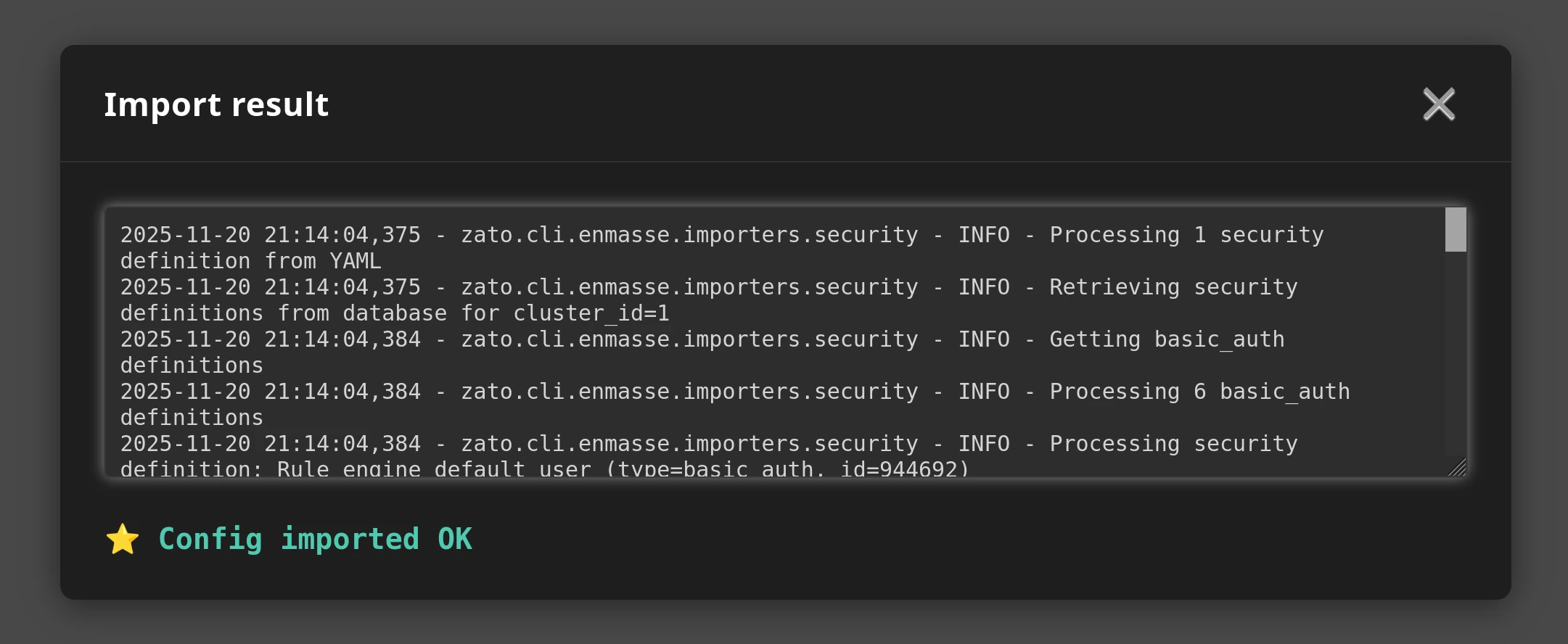
To automate the import process, mount your enmasse file under /opt/hot-deploy/enmasse/enmasse.yaml inside the container - best using the blueprint project described fully in the DevOps guide
If you notice that enmasse takes longer than a few seconds to complete - in the Dashboard, when you see the "Importing" spinner for a longer time - this indicates that one of your services is missing. For instance, your enmasse definition says that a REST channel should be created for service "api.my-service2" but this service is not currently deployed, or perhaps there's a typo in its name, and enmasse will keep waiting for such a service. Deploy the expected service or correct its name and enmasse will continue, or alternatively, import the corrected enmasse file again.
When enmasse runs, it can read environment variables and replace selected parts of a file to be imported based on what is found in the environment.
Passwords and other types of credentials are what environment variables are usually used for but it is possible to use them with any values in enmasse files.
To provide a value for the whole key based on what is among environment variables, give prefix "Zato_Enmasse_Env" to such a variable, as in the example below which reads a password for this security definition from a variable called "My_Token_Password" which must exist in the same system where enmasse runs.
security:
  - name: My.Token
    username: api
    type: bearer_token
    password: Zato_Enmasse_Env.My_Token_Password
To replace a part of a value, use the syntax below, which involves placing the same prefix as above inside curly brackets-delimited placeholders. You can have more than one placeholder in the same value.
In this example, if there is an environment variable called "My_Name_Suffix" and its name is "API.REST", the final name of this REST channel will be "My.API.REST".
Environment variables are read from the standard places, such as ~/.bashrc of the "zato" user inside the container, or from what you exported to a starting Docker container explicitly. Consult the full DevOps tutorial for more information how to pass environment variables to your Zato containers.
System → Config → Export enmasse to export them once or moreSystem → Config → Import enmasseAll available options for each object type are described in the enmasse reference page.
