
In this tutorial you will build a working API integration service in Python that orchestrates two remote systems, secure it with an API key, expose it as a REST endpoint, schedule it for background execution, and more. It takes about 1-2 hours to complete.
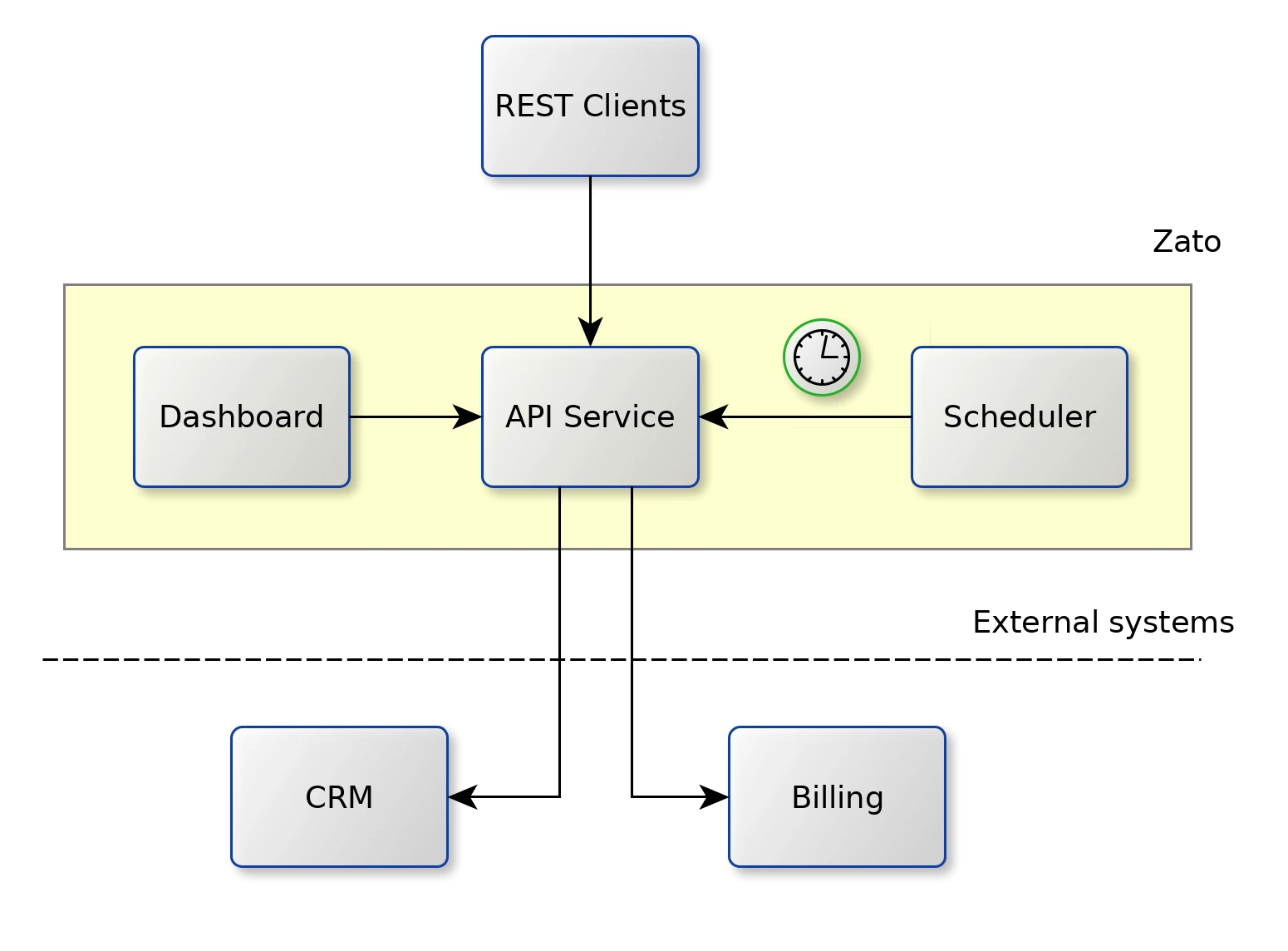
Here's what you'll have at the end:
Remember: you can connect your AI copilot to Zato documentation for real-time, accurate answers throughout this tutorial.
The recommended way to install Zato is via Docker. Both Desktop and Docker command line can be used.
Our quick-start image will auto-create an entire environment and various pieces of configuration for you, all set up and ready to work, and all in under 5 minutes.
You use the same Docker image for development, testing and production, so it's a great time saver that helps you to focus on things that are immediately useful, like the actual API integrations.
So, go to the Docker installation page, select Docker Desktop if you're under Windows or Mac, or select Docker command line if you're under Linux, fill out the details and we can resume the tutorial once you're back.

Zato offers connectors to all the popular technologies and vendors, such as REST, GraphQL, task scheduling, Kafka, Azure, Microsoft 365, AWS, Google Cloud, Salesforce, Atlassian, SAP, Odoo, SQL, HL7, FHIR, AMQP, IBM MQ, LDAP, Redis, MongoDB, SOAP, Caching and many more.
Running in the cloud, on premises, or under Docker, Kubernetes and other container technologies, Zato services are optimized for high performance and security - it's easily possible to run hundreds and thousands of services on typical server instances as offered by AWS, Azure, Google Cloud or other cloud providers.
Built-in security options include API keys, Basic Auth, JWT, NTLM, OAuth and SSL/TLS. It's always possible to secure services using other, non-built in, means.
In terms of its implementation, an individual Zato service is a Python class implementing a specific method called self.handle. The service receives input, processes it according to its business requirements, which may involve communicating with other systems, applications or services, and then some output is produced. Note that both input and output are optional, e.g. a background service transferring files between applications will usually have neither whereas a typical CRUD service will have both.
Because a service is merely a Python class, it means that each one consumes very little resources and it's possible to deploy hundreds or thousands of services on a single Zato server.
Services accept their input through channels - a channel tells Zato that it should make a particular service available to the outside world using such and such protocol, data format and security definition. For instance, a service can be mounted on independent REST channels, sometimes using API keys and sometimes using Basic Auth. Additionally, each channel type has its own specific pieces of configuration, such as caching, timeouts or other options.
Services can invoke other Zato services too - this is just a regular Python method call, within the same Python process. It means that it's very efficient to invoke them - it's simply like invoking another Python function.
Services are hot-deployed to Zato servers without server restarts and a service may be made available to its consumers immediately after deployment.
During development, the built-in Dashboard is usually used to create and manage channels or other Zato objects. As soon as a solution is ready for DevOps automation and CI/CD pipelines, its can be deployed automatically from the command line or directly from a git clone, which makes it easy to use Zato with tools such as Terraform, Nomad or Ansible.
Here's a few useful details to keep in mind.
Before we start, it makes sense to note that you don't need anything besides Zato to go through the tutorial. In particular, Zato ships with its own, browser-based Python IDE that will be used here.
And by the way, you can certainly use VS Code with Zato too, but it's not really needed for the tutorial, so we'll be using the built-in, cloud IDE.

Now that you have Zato installed, let's invoke a service and see some action.
The screen is divided into several parts:
Enter "name=Mike" in the parameters field and click Invoke. This will invoke the service on the server and return a response to you.
{"name":"Mike"} means the same as name=Mike but it's almost always more convenient to enter key=value parameters so that's what the tutorial uses.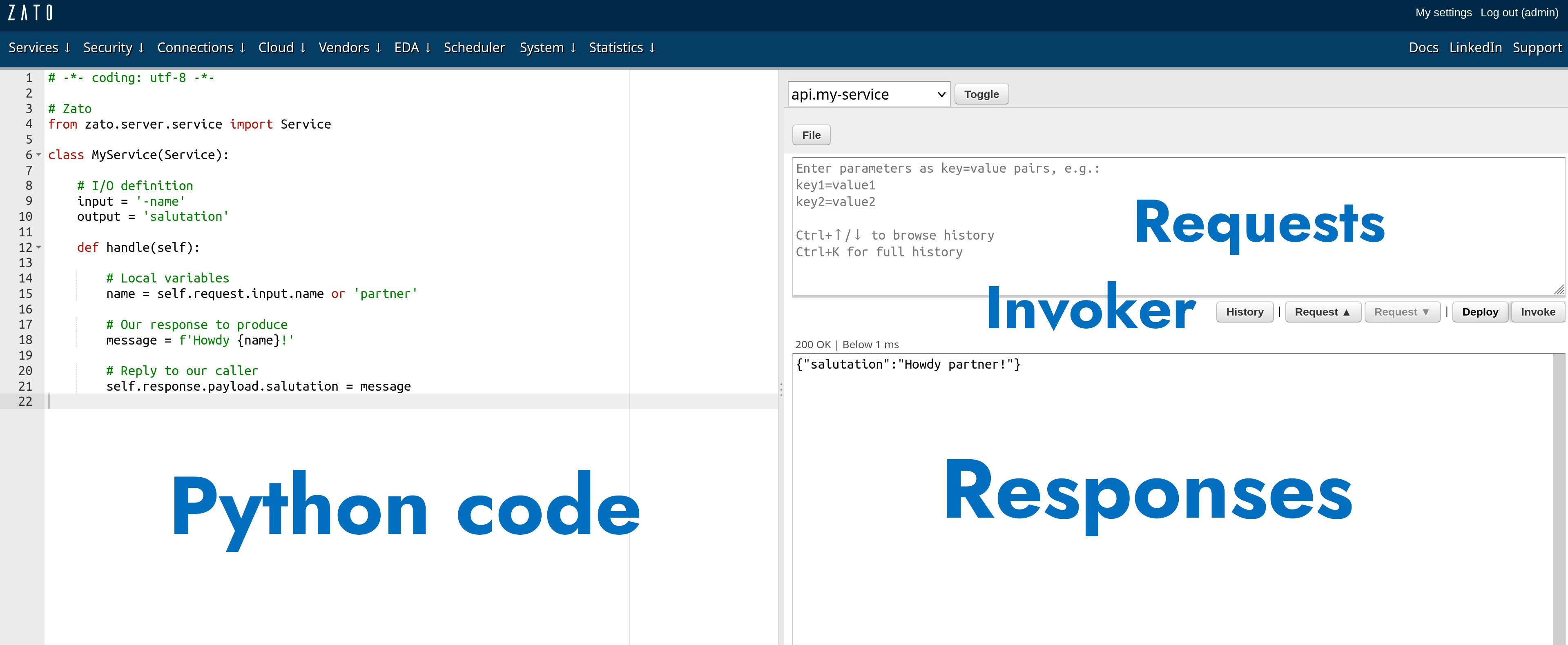


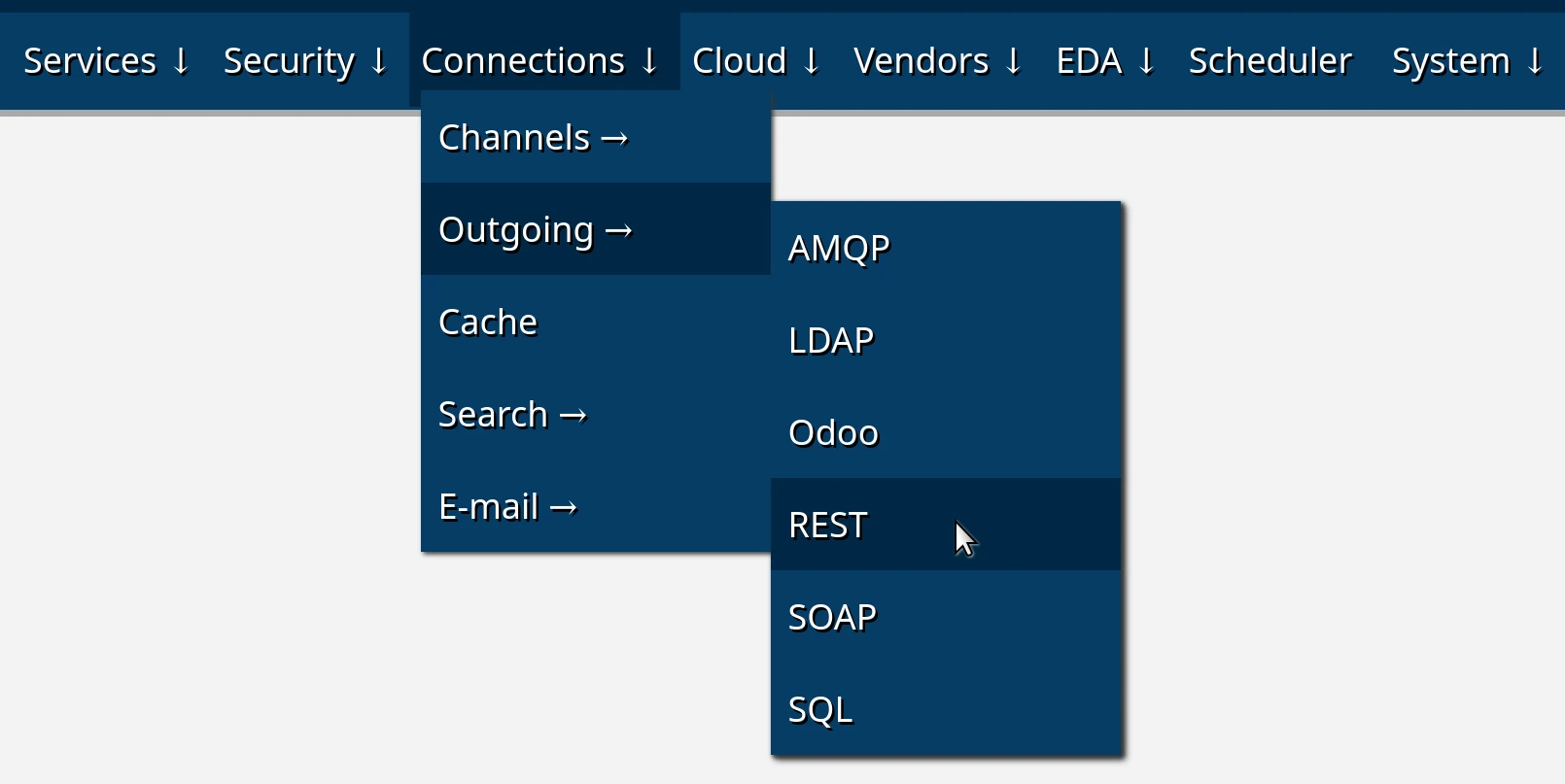
There are two ways to create outgoing connections:
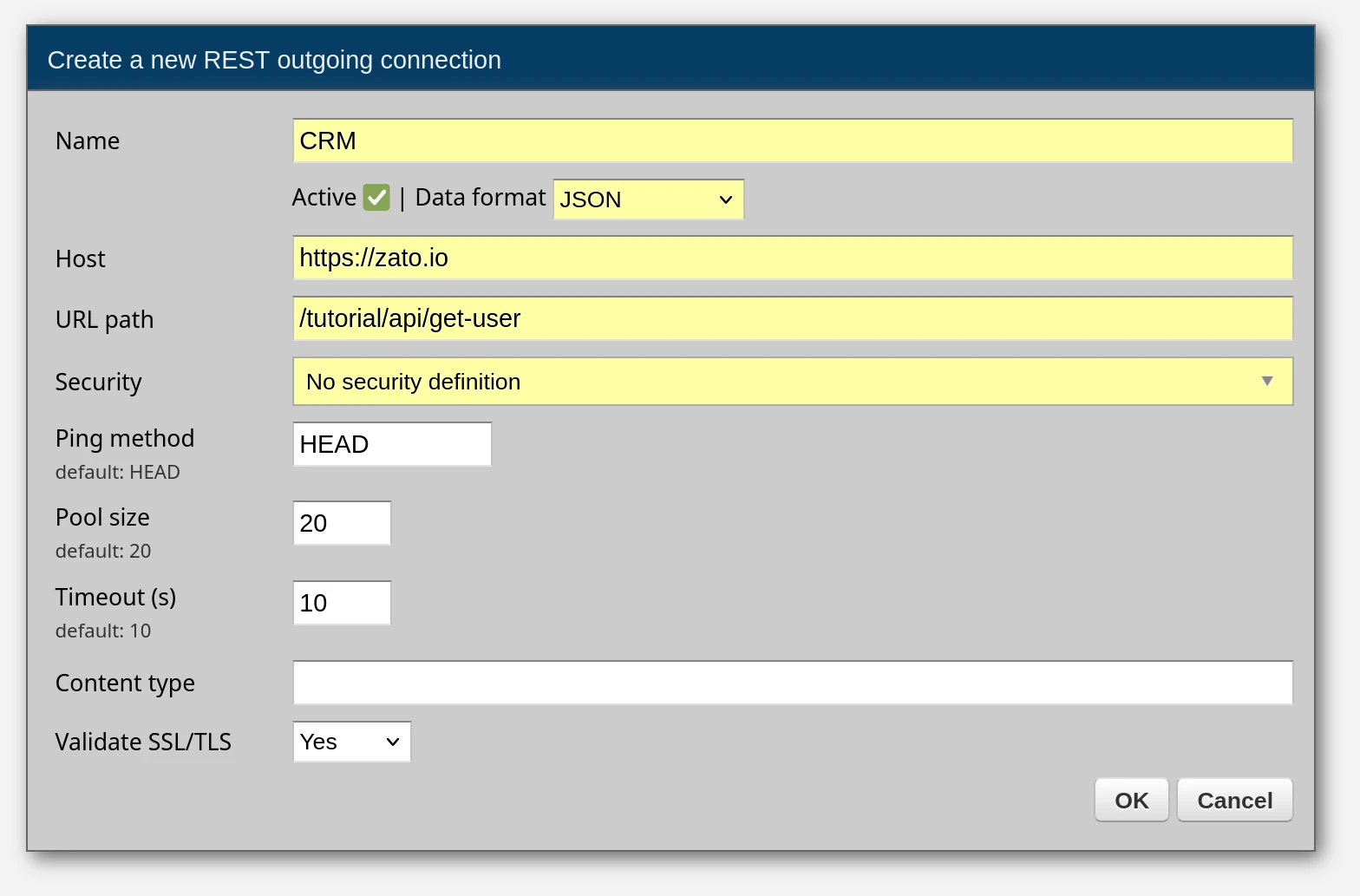
For this tutorial, we'll create connections manually. Click "Create a new REST outgoing connection" and a form will appear. We need to create two connections, to CRM and Billing, so fill it out twice, clicking "OK" each time to save the changes.
Here are the connection details to provide in the form.
| Header | Value |
|---|---|
| Name | CRM |
| Data format | JSON |
| Host | https://zato.io |
| URL path | /tutorial/api/get-user |
| Security | No security |
| Header | Value |
|---|---|
| Name | Billing |
| Data format | JSON |
| Host | https://zato.io |
| URL path | /tutorial/api/balance/get |
| Security | No security |
For instance, here's how the form filled out with the first connection's details looks like. The fields to enter new information in are highlighted in yellow. The rest can stay with the default values.
Having created REST connections, we can check if they can access the systems they point to by pinging them - there is a Ping link for each connection to do that.

Click it and confirm that the response is similar to the one below - as long as it is in green, the connection works fine.

The connection is pinged not from your localhost but from one the server - in this way you can confirm that it truly is your servers, rather than your local system, the ones that have access to a remote endpoint.
In the IDE, click File -> New file, enter api.py as the file name and wait for a confirmation that a new service is ready to be invoked.
You'll note that the default contents of new services is the same demo code as previously. That's on purpose. Let's now build your integration service step by step.
Step 1: Service skeleton
First, replace the demo code with this skeleton and click Deploy:
# -*- coding: utf-8 -*-

# Zato
from zato.server.service import Service

# ##############################################################################

class MyService(Service):
    """ Returns user details by the person's name.
    """
    name = 'api.my-service'

    # I/O definition
    input = '-name'
    output = 'user_type', 'account_no', 'account_balance'

    def handle(self):
        name = self.request.input.name or 'partner'
        self.logger.info(f'cid:{self.cid} Received request for {name}')

        self.response.payload = {
          'user_type': '',
          'account_no': '',
          'account_balance': '',
        }

# ##############################################################################
Enter "name=Mike" and click Invoke. You'll get an empty response - that's expected, the skeleton doesn't talk to any systems yet. The minus sign in input = '-name' means the parameter is optional.
Step 2: Add CRM connection
Now, add the CRM call. Replace the handle method:
    def handle(self):
        name = self.request.input.name or 'partner'

        # Get data from CRM
        crm_conn = self.out.rest['CRM'].conn
        crm_request = {'UserName':name}
        crm_data = crm_conn.get(self.cid, crm_request).data

        user_type = crm_data['UserType']
        account_no = crm_data['AccountNumber']

        self.logger.info(f'cid:{self.cid} Got CRM data for {name}')

        self.response.payload = {
          'user_type': user_type,
          'account_no': account_no,
          'account_balance': '',
        }
Click Deploy, then Invoke with "name=Mike". Now you'll see real data from CRM - user_type and account_no will be populated.
Step 3: Add Billing connection
Add the Billing call to get the complete picture:
    def handle(self):

        # For later use
        name = self.request.input.name or 'partner'

        # REST connections
        crm_conn = self.out.rest['CRM'].conn
        billing_conn = self.out.rest['Billing'].conn

        # Prepare requests
        crm_request = {'UserName':name}
        billing_params = {'USER':name}

        # Get data from CRM
        crm_data = crm_conn.get(self.cid, crm_request).data

        # Get data from Billing
        billing_data = billing_conn.post(self.cid, params=billing_params).data

        # Extract the business information from both systems
        user_type = crm_data['UserType']
        account_no = crm_data['AccountNumber']
        account_balance = billing_data['ACC_BALANCE']

        self.logger.info(f'cid:{self.cid} Returning user details for {name}')

        # Now, produce the response for our caller
        self.response.payload = {
          'user_type': user_type,
          'account_no': account_no,
          'account_balance': account_balance,
        }
Click Deploy, then Invoke. All three fields are now populated - your service orchestrates two independent systems and returns a unified response.
Let's analyze a few key points about the complete service:
We refer to the previously created REST connections by their names, CRM and Billing. We don't hardcode any information about the connections inside the Python code. This promotes reusability because it lets us reconfigure the connection without having to redeploy the service.
The one to CRM is sent using the GET method but the one to Billing is a POST one. CRM receives a JSON request on input but Billing receives query string parameters ("params") because this is what these hypothetical systems expect.
We extract the information from both systems using Python's regular dict notation. Note that CRM and Billing use different data format conventions, e.g. UserType vs. ACC_BALANCE.
We return a response to our caller using our own preferred data format, which is "lower_case", e.g. user_type or account_no, even though the source systems were using different naming formats.
At its core, that's how an API service works: accept input, connect to external resources, map data from one format to another and provide a response in your canonical data format. All using simple Python code.
Now, let's let external REST clients invoke this service too. For that, we need security credentials first.
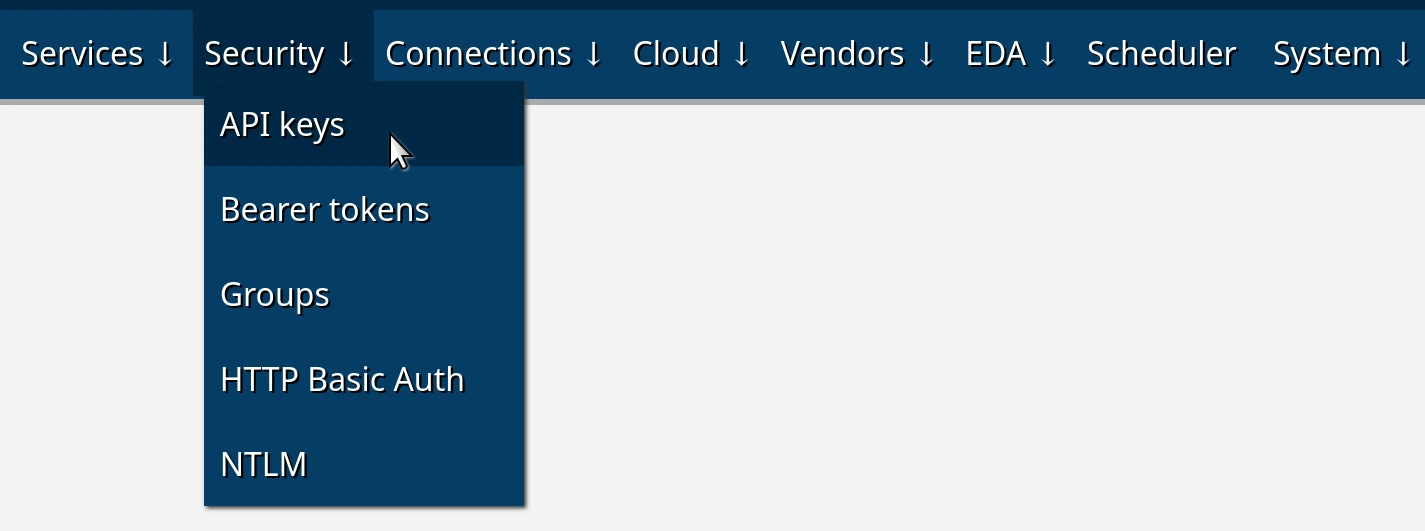
Click Create a new API key and enter "My API Key" as the name of the security definition, then OK to create it.
Click Change API key in the newly created API key and enter any value for the key, e.g. let's say it will be "abc", then OK to set it. This step is required because, by default, all the passwords and secrets in Zato are random uuid4 strings.
What you've just created is a reusable security definition - you can attach to multiple REST channels, which means that you can secure access to multiple REST endpoints of yours using such definitions. We're not limited to API keys though, the same goes for Basic Auth or SSL/TLS, for instance.
Let's create a REST channel now, that is, let's make it possible for external API clients to invoke your services.
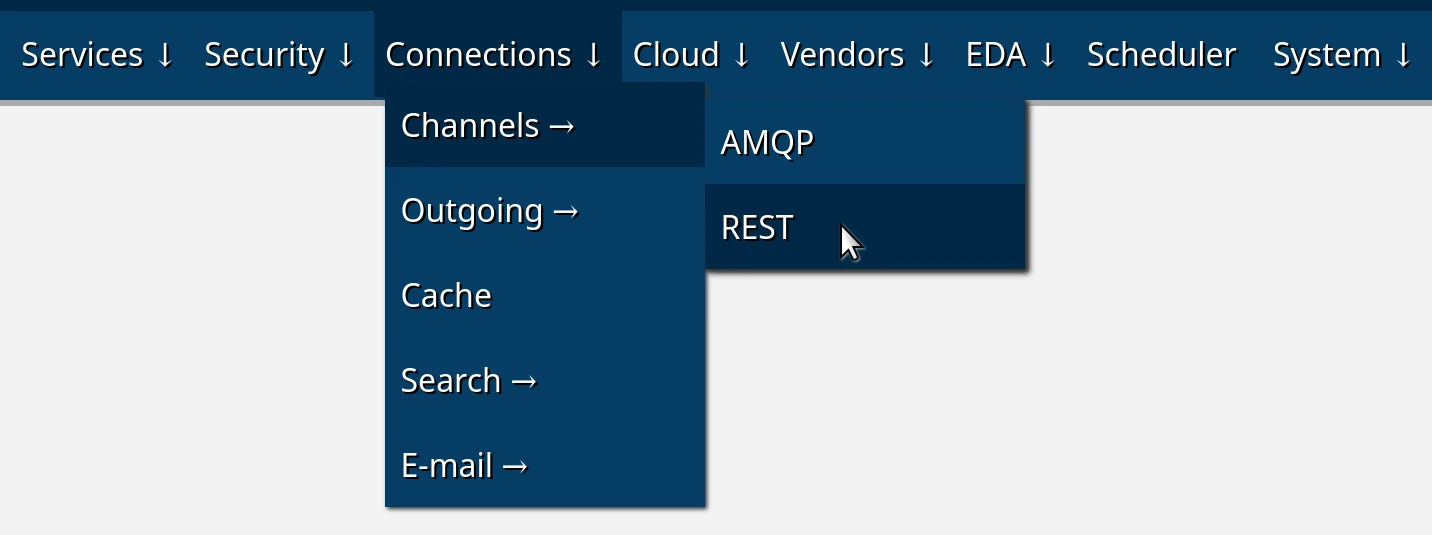
Click Create a new REST channel, enter the values as below and click OK.
| Header | Value |
|---|---|
| Name | My REST Channel |
| Data format | JSON |
| URL path | /tutorial/api/get-user-details |
| Service | api.my-service |
| Security | API key/My API Key |
As previously, the fields to enter new information in are highlighted in yellow. The rest can stay with the default values. You can toggle the options to check what else is possible but we don't need it during the tutorial.
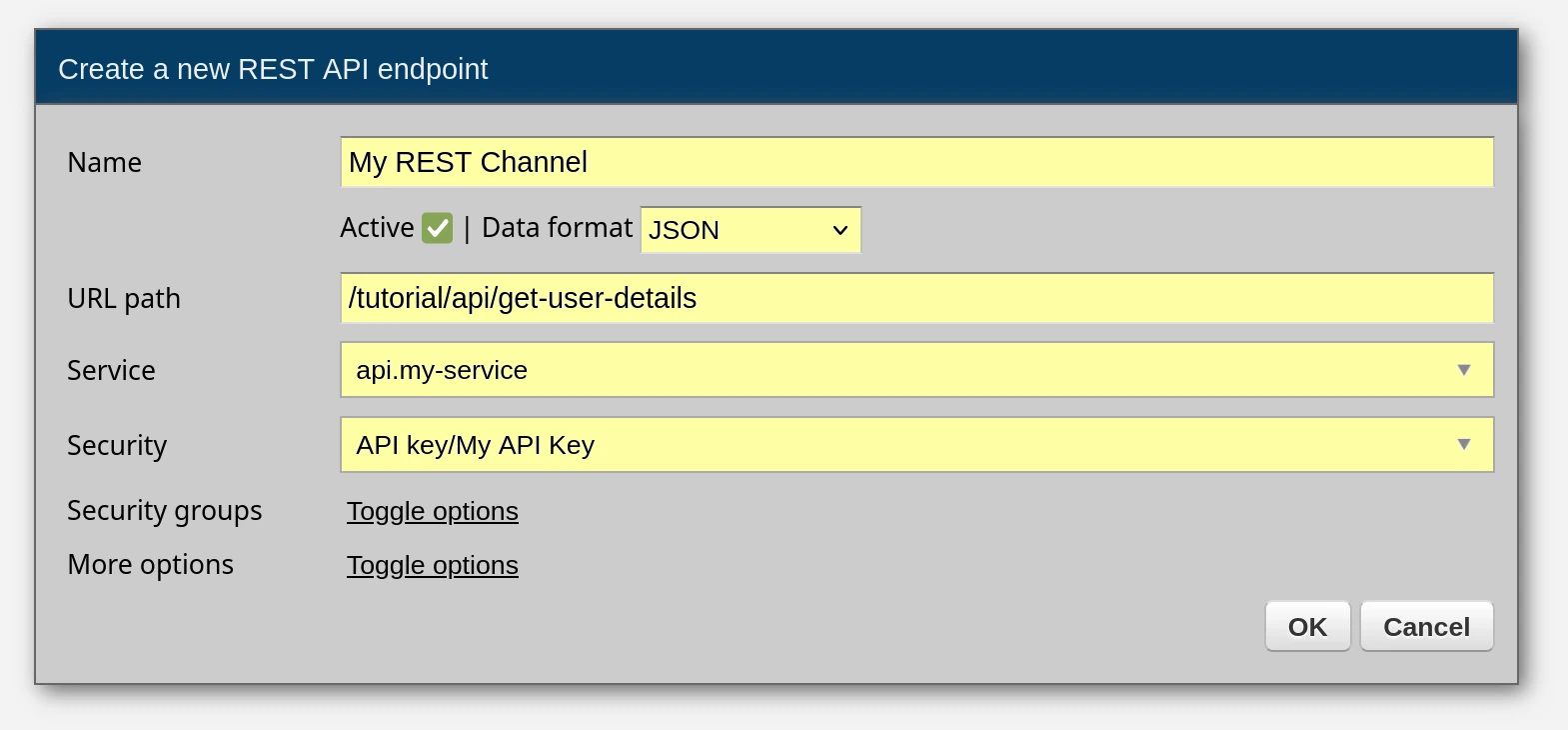
A channel is a definition of an API endpoint. That's how you make your services available to external callers, to apps and systems that want to make use of your services.
But note that an endpoint is not the same as a service, because a single service can be mounted on multiple channels, for instance, each channel with a different security definition or a rate-limiting strategy.
OK, good, we have a channel so let's invoke it now.
Since a REST channel is just a regular REST endpoint, we can use any REST client to invoke it. Let's use Postman and curl - the result will be the same in either case.
Here are our endpoint's details:
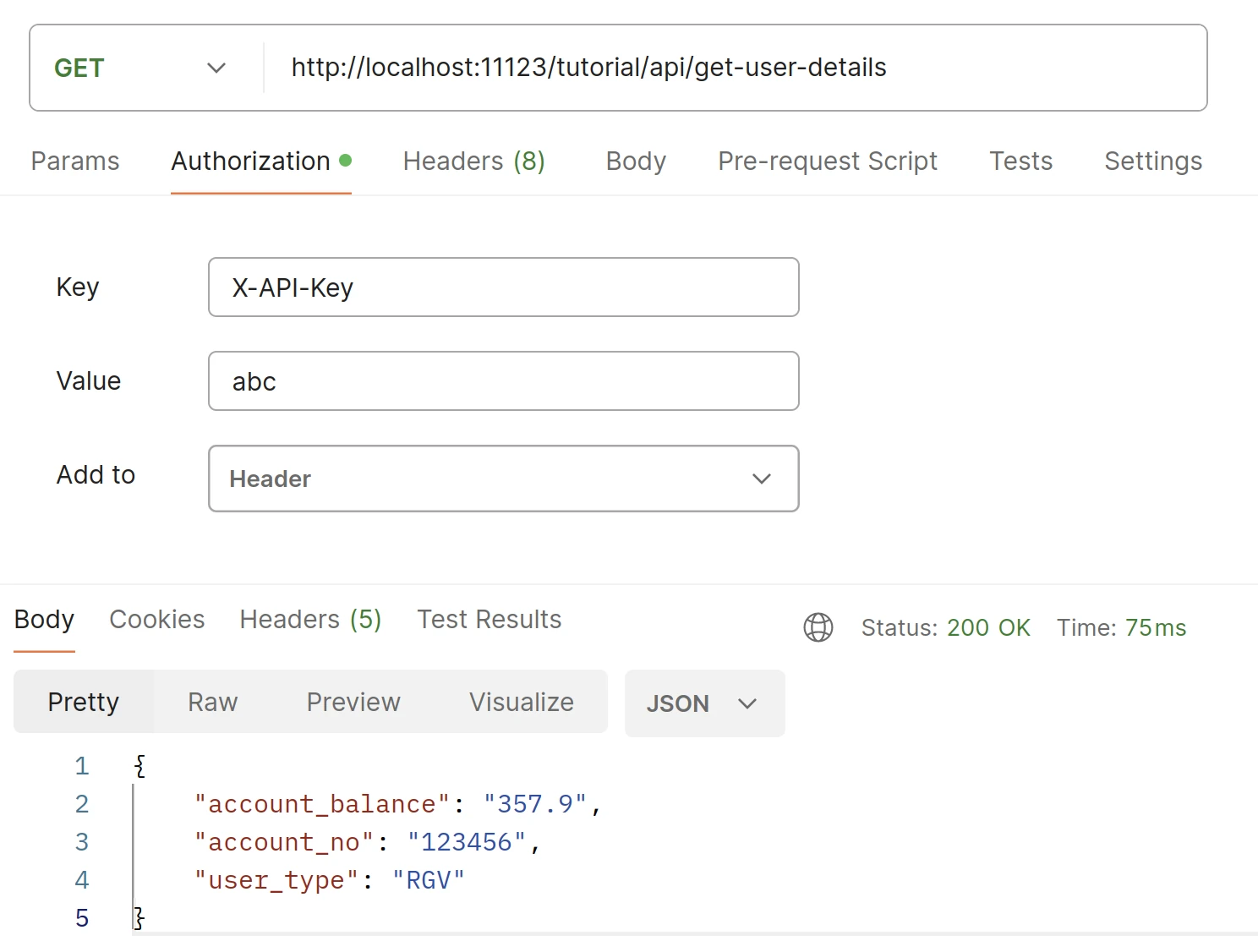
Interestingly, since your browser receives all the server log messages, you can check in your browser's developer console what your service and the outgoing connections are doing while you're invoking them from Postman (remember, press F12 and make sure to set the level to "Info" only)

Here's a brief overview of what you will observe in the logs that your browser is receiving:
1) Invocation of the REST Channel: Entries indicating the invocation of the REST channel will show details such as the specific channel invoked and the details of the remote API client initiating the request.
2) Requests to and Responses from CRM and Billing: Following the invocation of the REST channel, you'll see entries corresponding to requests sent to and responses received from the CRM and Billing systems. These entries can be correlated with the same correlation ID (CID) as the initial REST channel invocation, providing a clear traceability of the request flow through the system.
3) Custom Log Messages: Additionally, custom log messages added within the service implementation will also be captured in the log file. These messages can provide additional context or insights into the service's behavior and processing steps.
And there you have it, a reusable API endpoint, implemented in Python and secured with an API key.
Let's check how to use the scheduler now, how to invoke services in background periodically.
In Dashboard, go to Scheduler, click Create a new job: interval-based
A form will show on screen, fill it out as below:
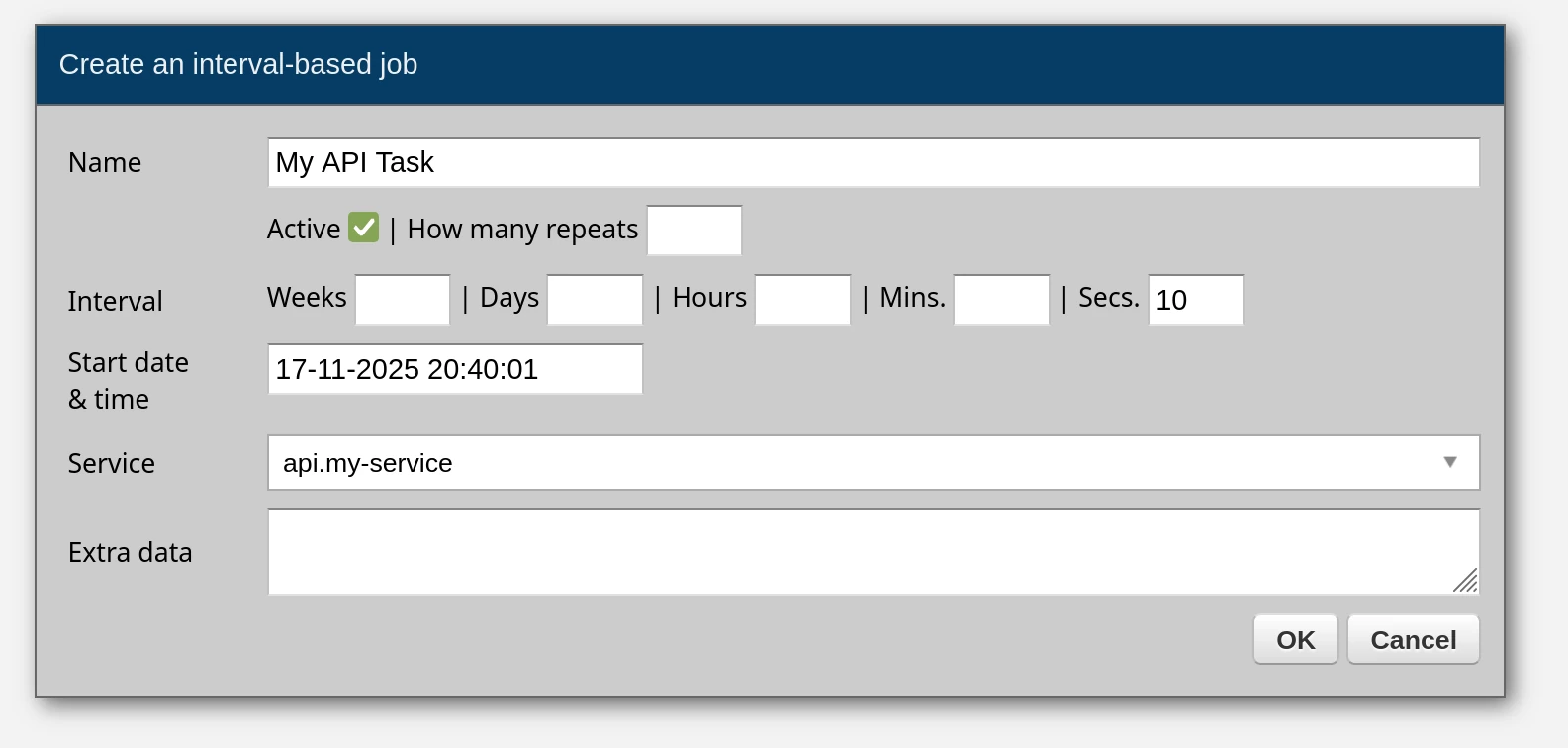
And you're done. You've just scheduled your service to be invoked in background once in 10 seconds, indefinitely, using an interval-based job.
The scheduler supports per-job timezones, jitter (to prevent clustered servers from firing at the same instant), max execution time (to kill hung jobs), one-time jobs, and full YAML export for reproducible deployments:
scheduler:
  - name: my.report.job
    service: api.my-service
    job_type: interval_based
    seconds: 10
    timezone: Europe/Berlin
    jitter_ms: 5000
    max_execution_time_ms: 15000
For the complete guide, see the Python scheduler tutorial.
The REST service you've just built is only one example of what's possible. Here are other integration patterns that work the same way - you write a service, and the platform handles the wiring.
Group your REST channels into an OpenAPI specification that clients can consume directly. Create an OpenAPI channel in Dashboard under Connections -> Channels -> OpenAPI, assign REST channels to it, and Zato generates a standard OpenAPI 3.1 spec - downloadable as YAML or accessible via HTTP. See OpenAPI docs.
Create a Kafka channel in Dashboard, point it to a topic, and your service is invoked for each message - zero wiring code:
class MyService(Service):
    def handle(self):
        data = self.request.raw_request
        self.logger.info('Kafka message: %s', data)
Publishing is just as simple - self.out.kafka['my-publisher'].send({'event': 'order.created'}). See the full Kafka examples.
Create a GraphQL outgoing connection in Dashboard and query any GraphQL server directly from your services:
class MyService(Service):
    def handle(self):
        conn = self.out.graphql['ms365-graph']
        result = conn.execute('{ users { id displayName mail } }')
        self.logger.info('Users: %s', result)
Variables are passed via the params argument - conn.execute(query, params={'user_id': 'abc-123'}). See the full GraphQL examples.
Zato has a built-in pub/sub broker. Services publish to topics, external applications subscribe and pull messages from their queues via REST. No external broker required:
See pub/sub docs.
Same pattern as Kafka - create an AMQP channel in Dashboard pointing to a queue, and your service is invoked for each message. Publishing goes through self.outgoing.amqp.send. See AMQP examples.
Express business rules in a way that both technical and business people can read and maintain. Rules are evaluated by the platform and can gate, route, or transform requests without touching service code. See the rule engine tutorial.
Protect your endpoints with per-channel or per-client rate limits - requests per minute, per hour, with burst allowances, time-of-day windows, and IP-based blocking. All configured in Dashboard, no code changes needed. See rate limiting docs.
Zato is used in hospitals, labs, and health information exchanges. HL7v2 fields are accessed by semantic name rather than cryptic positions:
MLLP channels handle framing and ACKs automatically. See the HL7v2 pillar page for the full reference.
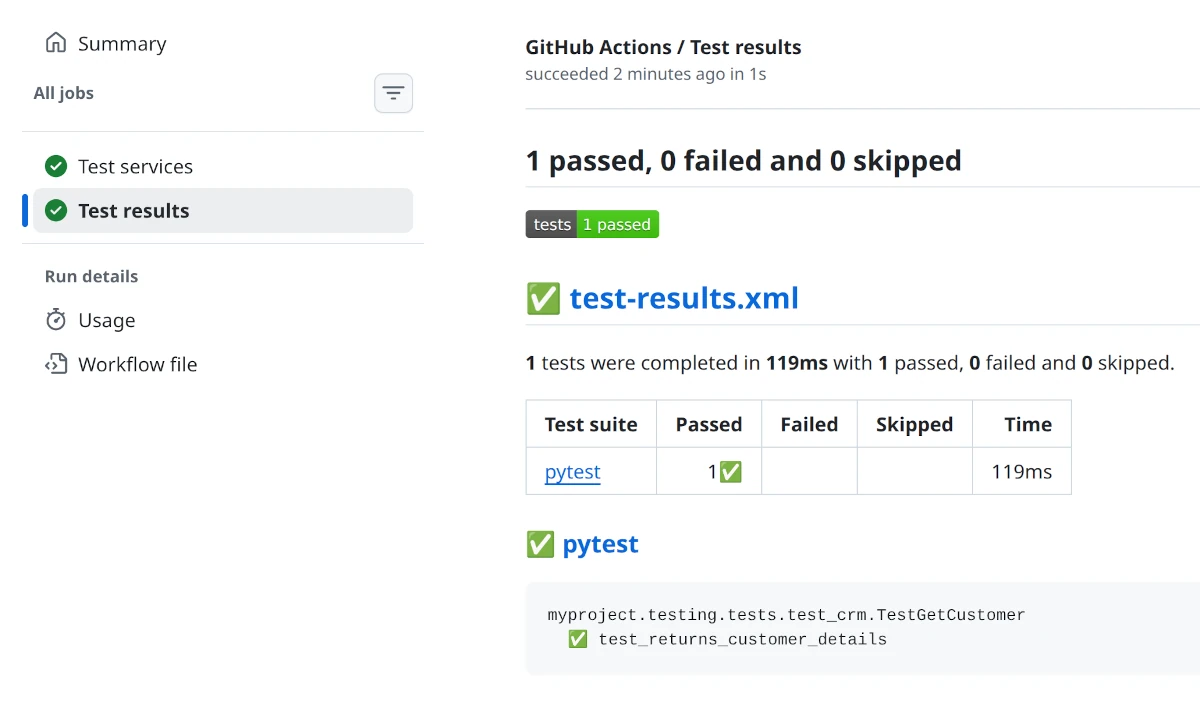
Well, we do have an API service but we don't have any tests for it.
Zato ships with a unit testing framework that lets you test your services without running a server. You write tests using Python's standard unittest module, mock external connections, and verify your service logic works correctly.
Throughout the tutorial, you may have been wondering about one thing.
OK, we have Python services and unit tests, but how am I actually going to provision my new environments? It's good that there's Dashboard but am I supposed to keep clicking and filling out forms each time I have a new environment? If I create a few dozen REST channels and other connections, how do I automate the process of deploying it all? How do I make my builds reproducible?
These are good questions and there's a good answer to it too. You can automate it all very easily.
There's an entire chapter about it but, in short, everything you do in Dashboard can be exported to YAML, stored in git, and imported elsewhere.
Such a file will have entries like these here:
security:
  - name: My API Key
    type: apikey
    username: My API Key
    password: Zato_Enmasse_Env.My_API_Key

channel_rest:
  - name: My REST Channel
    service: api.my-service
    security_name: My API Key
    url_path: /tutorial/api/get-user-details
    data_format: json
You can easily recognize the same configuration that you previously added using Dashboard. It's just in YAML now.
You push files with such configuration to git and that lets you have reproducible builds - you're always able to reproduce the same exact setup in other systems or environments. In other words, this is Infrastructure as Code.
If you ever need any live assistance during the tutorial, remember that you can connect your AI copilot or LLM and ask it questions about the tutorial and other parts of the documentation.
Zato exposes its documentation via MCP (Model Context Protocol) at https://zato.io/mcp. You can connect Claude, Cursor, VS Code, or any other MCP-compatible tool:

There are many more features that the platform has and this tutorial only showed you the basics that will already let you integrate systems but it's still just the tip of the iceberg.
If you want to discover on your own what else is possible, it's a good idea to check the individual chapters of the documentation and learn more about what makes the most sense in your own situation, for your own integration and automation purposes.
If you're building integrations and you'd like a trusted partner to guide you on architecture and design, get in touch and let's see what we can do together.
Book a demo with an expert who will help you build meaningful systems that match your ambitions
"For me, Zato Source is the only technology partner to help with operational improvements."
 - John Adams
Program Manager of Channel Enablement at Keysight 
